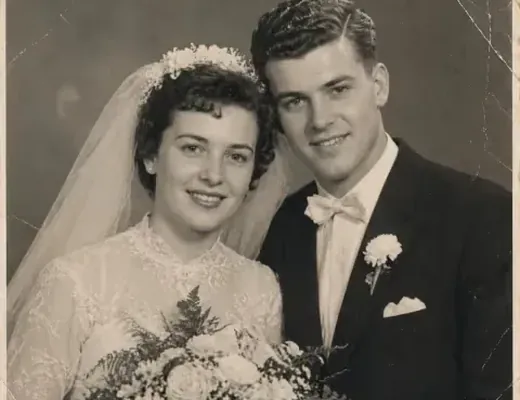
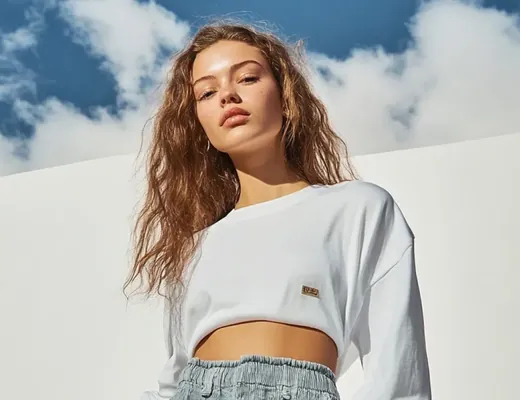
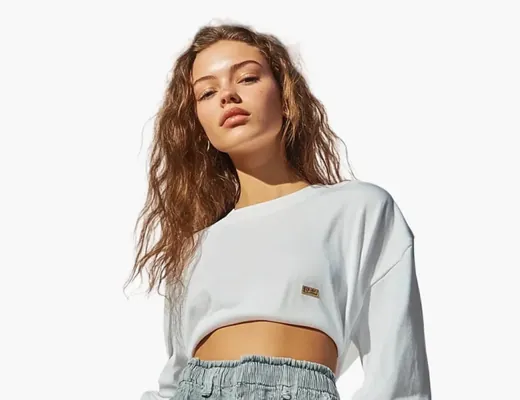
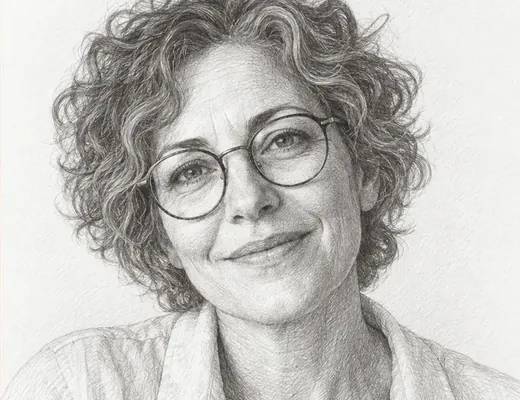

New: Nano Banana 2 & GPT Image 2

Try it

EditPic: Free AI Photo Editor Online

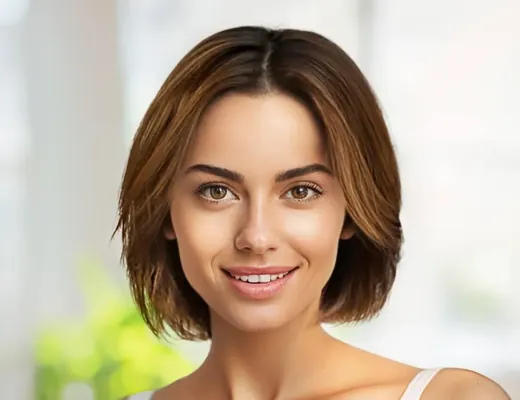
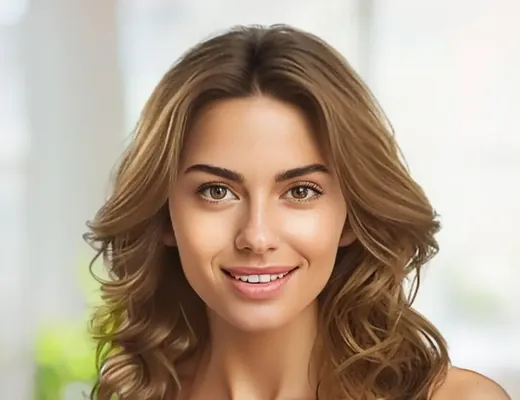
, or any photo with AI — just describe the edit.

  • Works in any browser
  • No Photoshop skills
  • Your photos stay yours

Powered by

  • Nano Banana 2
  • GPT Image 2
  • Nano Banana Pro
  • Nano Banana
  • Seedream
  • Flux

Everything You Need to Edit Photos with AI

Remove backgrounds, erase objects, upscale, restore and restyle photos in one AI photo editor. Open any tool and its prompt is ready for your photo.

  • Remove Background example: the photo after the AI editRemove Background example, original photo

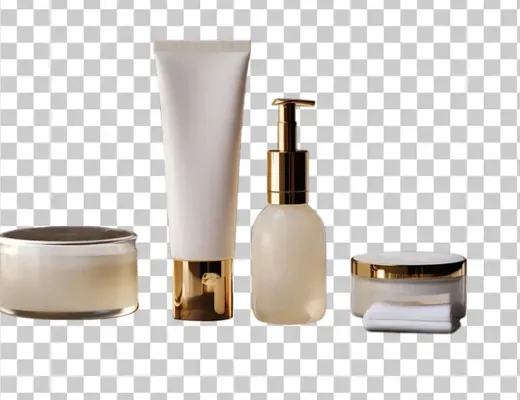
    Clean cutouts of products and people.

  • Erase Objects example: the photo after the AI editErase Objects example, original photo

    Clear tourists, clutter and distractions.

  • Upscale & Enhance example: the photo after the AI editUpscale & Enhance example, original photo

    Turn blurry shots sharp and detailed.

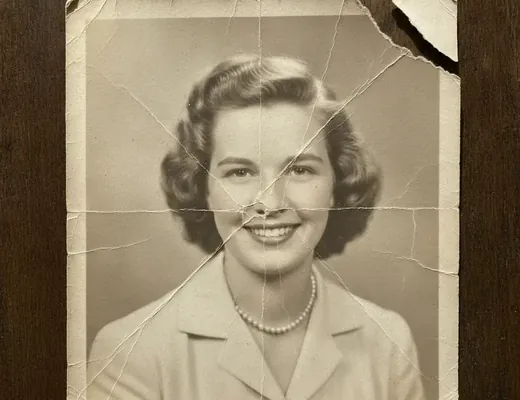
  • Restore Old Photo example: the photo after the AI editRestore Old Photo example, original photo

    Fix tears, creases and scratches.

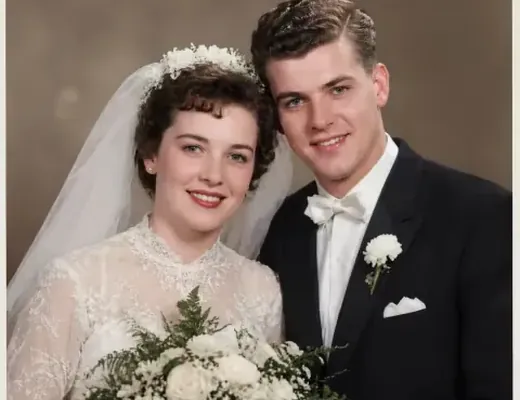
  • Colorize Photo example: the photo after the AI editColorize Photo example, original photo

    Bring black-and-white photos to life.

  • Change Background example: the photo after the AI editChange Background example, original photo

    Swap a plain backdrop for any scene.

  • Restyle Photo example: the photo after the AI editRestyle Photo example, original photo

    Turn photos into sketches, anime or paintings.

  • Relight Photo example: the photo after the AI editRelight Photo example, original photo

    Set the mood with warm or cool light.

  • Swap Outfit example: the photo after the AI editSwap Outfit example, original photo

    Try on new clothes, no photoshoot.

  • Remove People example: the photo after the AI editRemove People example, original photo

    Clear photobombers, keep the scene.

  • Replace Objects example: the photo after the AI editReplace Objects example, original photo

    Swap any object with one sentence.

  • Change Hairstyle example: the photo after the AI editChange Hairstyle example, original photo

    Preview a new cut before the salon.

Trending AI photo edits

Tap any card to try it

What You Can Do with the EditPic AI Photo Editor

From quick fixes to full makeovers, every photo edit starts in one prompt box. Describe the change in plain words and the AI photo editor handles masking, blending and lighting for you, with no layers to learn.

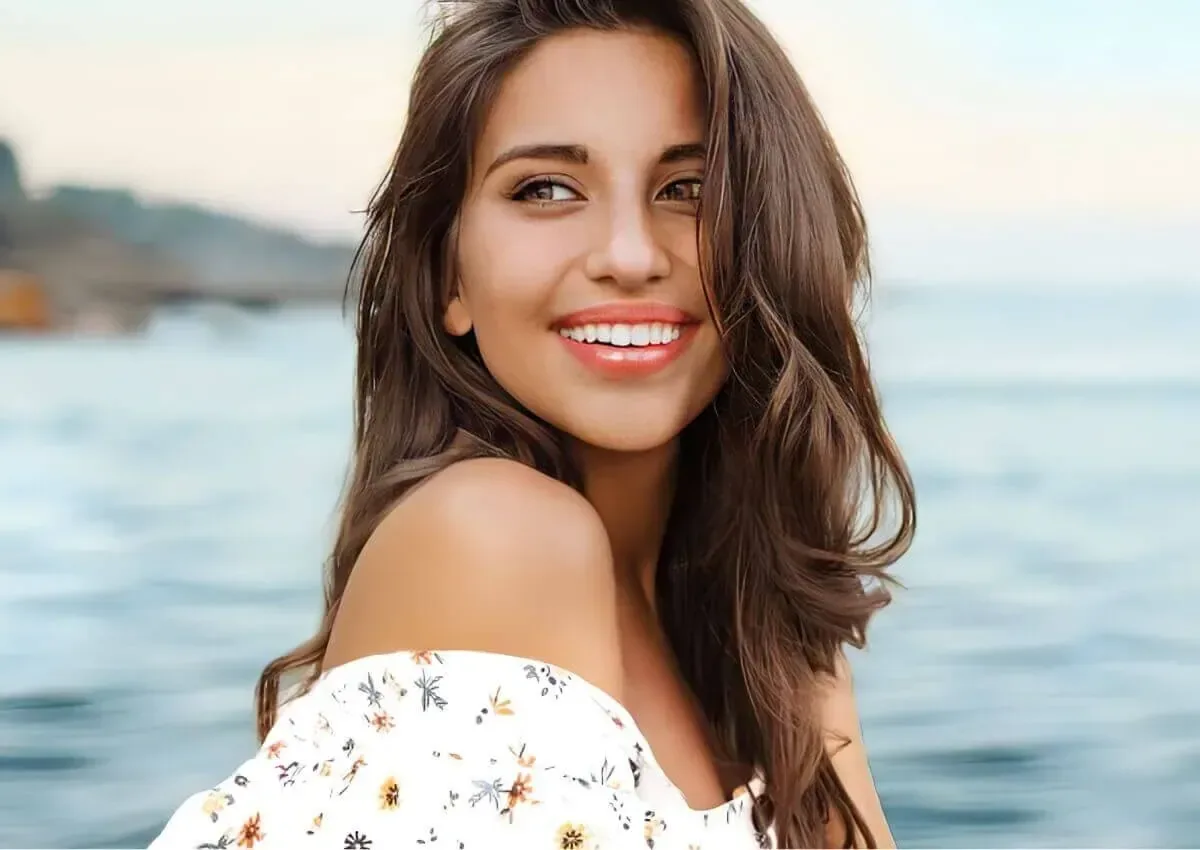
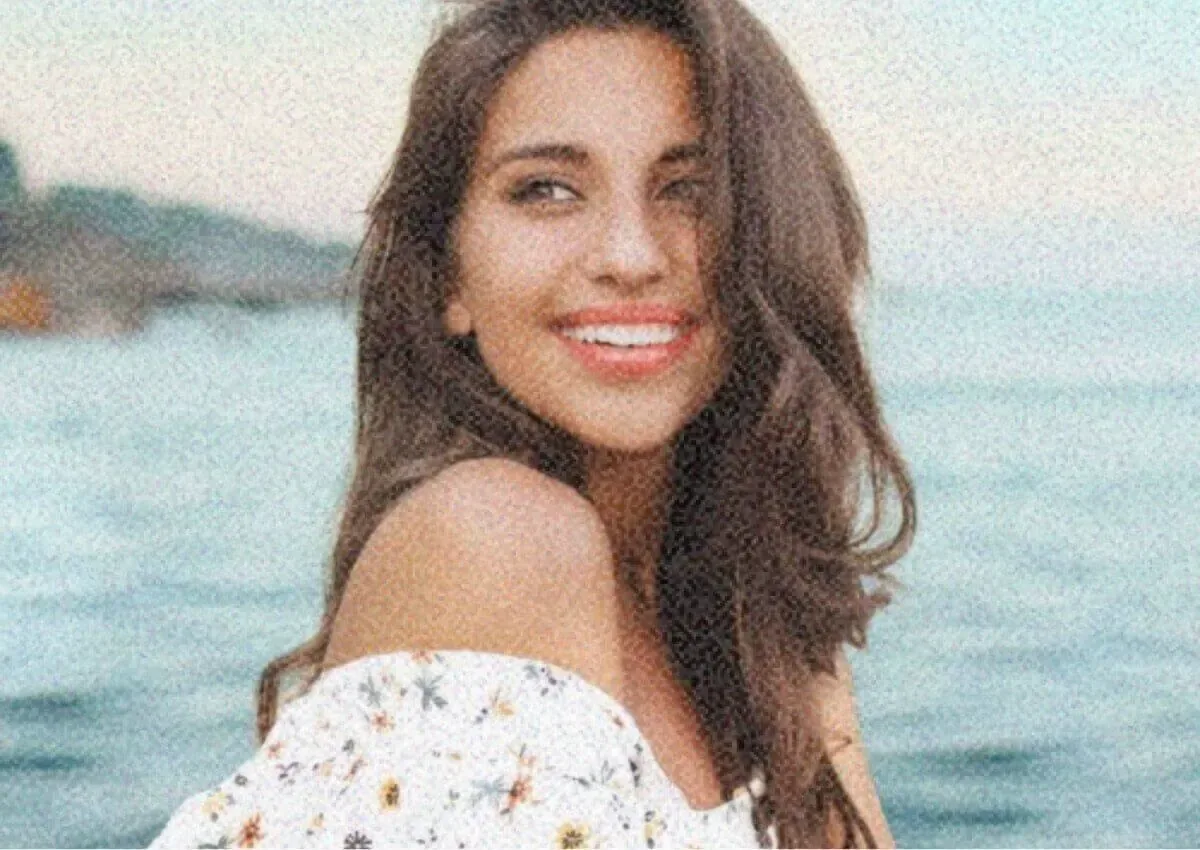
The same portrait after AI photo enhancement, clean and sharp with natural skinGrainy, noisy portrait of a smiling woman by the sea before AI enhancement
Enhance

Enhance Photos with an AI Photo Editor

Enhance photo quality in one step: our AI photo editor sharpens soft details, lifts dull lighting and cleans up noise while keeping faces natural. Describe the look you want and download a cleaner, sharper photo.

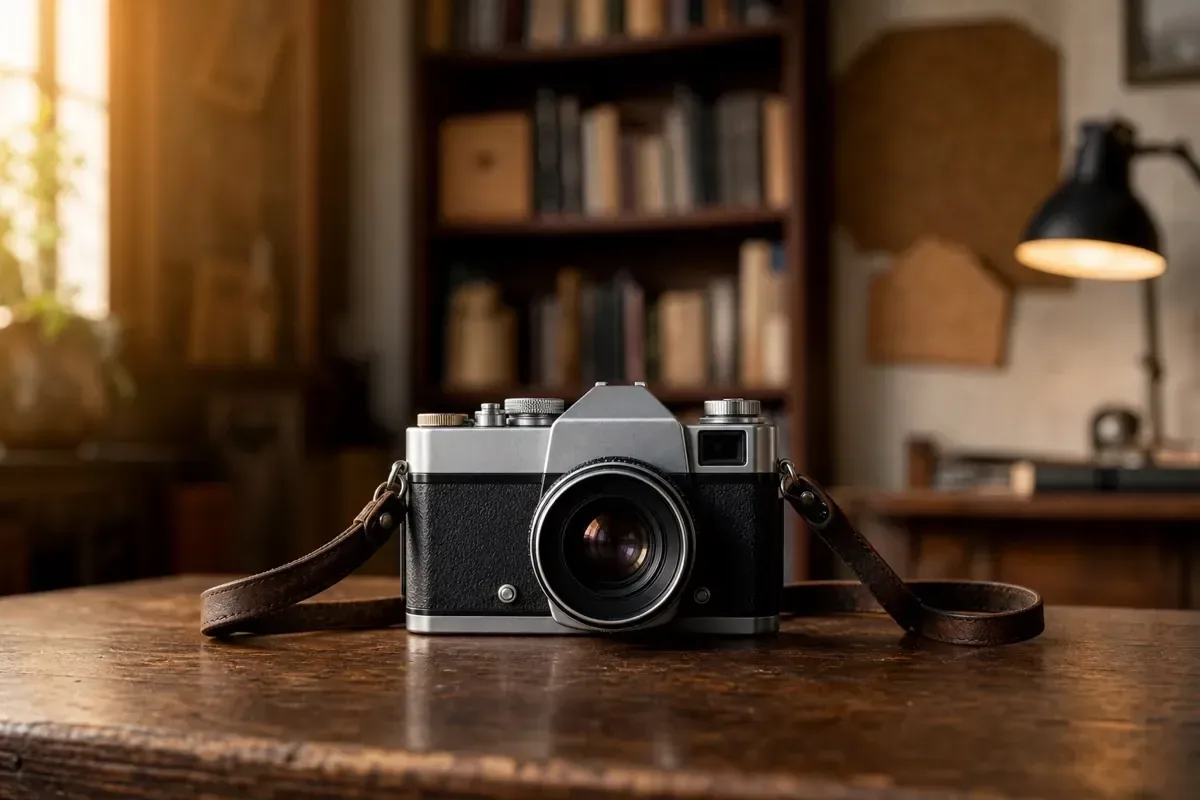
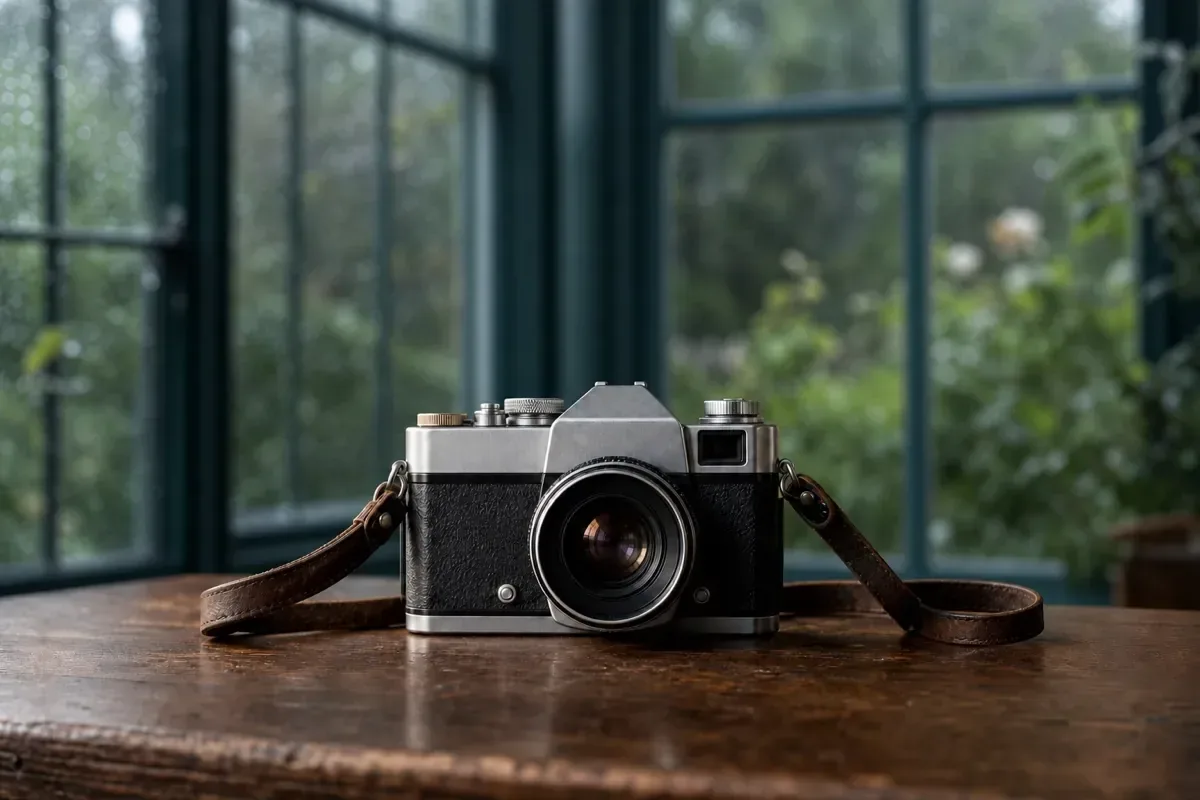
The same camera after an AI background swap, now in a warm study with bookshelves and a desk lampVintage film camera on a wooden table in front of a rainy garden window
Generative Edit

Generative Edits in an Online AI Photo Editor

Erase objects, swap skies or replace backgrounds just by describing the change. The AI fills the gap with matching texture and light, so strangers, wires and clutter leave the photo without a trace.

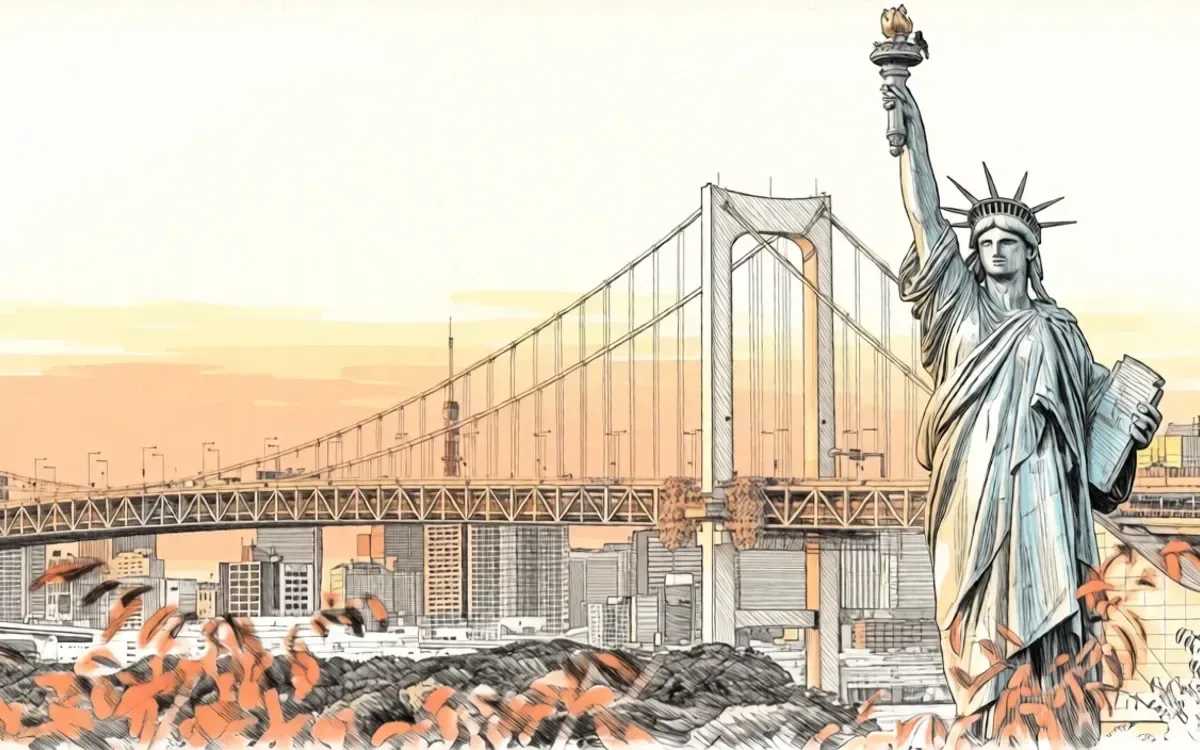
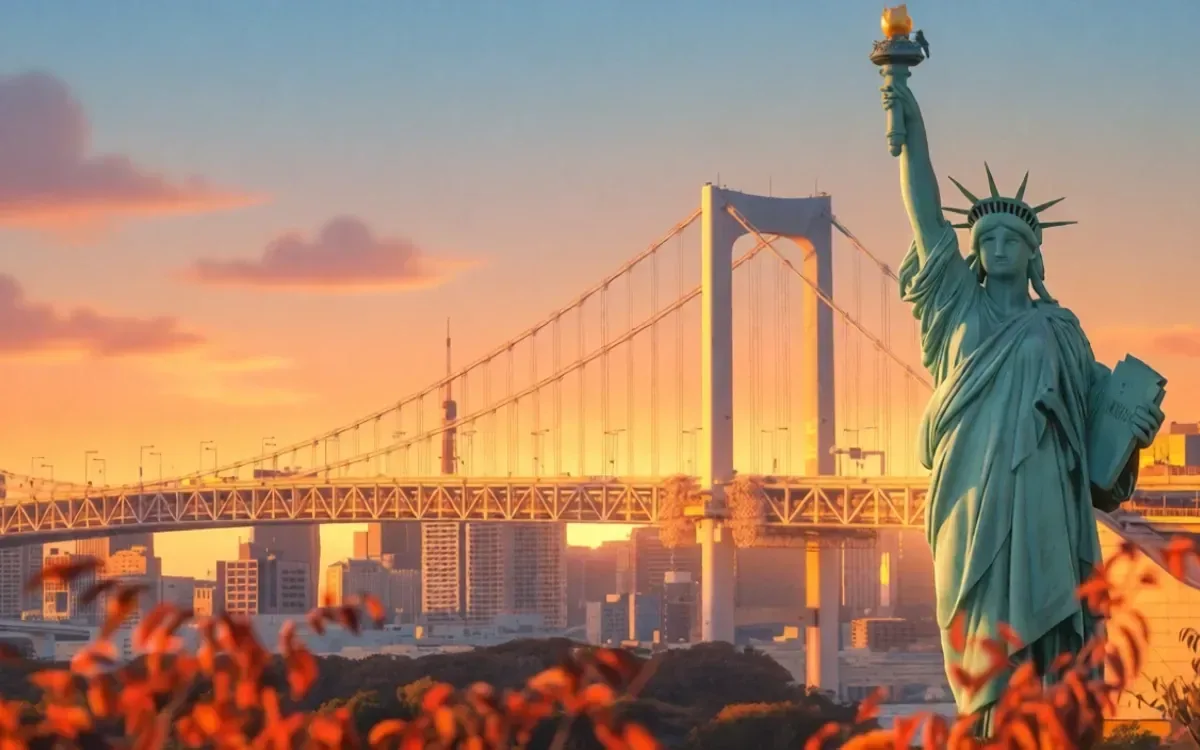
The same scene restyled as a hand-drawn ink and watercolor illustrationPhoto of the Statue of Liberty and a suspension bridge at sunset
Style Transfer

Restyle Photos in Any Look You Like

Restyle photo scenes as watercolor, anime, oil paint or a clean studio cut-out while your subject stays recognizable. Try a few looks side by side in the AI photo editor and keep the one that fits your post, print or slide deck.

Explore Ready-to-Use AI Photo Editing Prompts

Start from AI photo editing prompts that already work. Send one to the AI photo editor with your photo, or copy the text and tweak it to fit your idea.

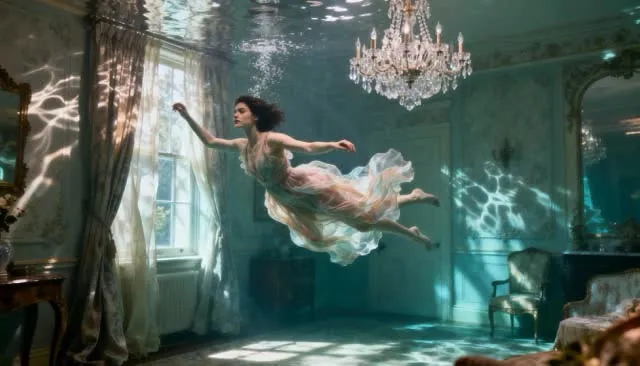
Woman floating in a flooded vintage room, made with an AI photo editing prompt
Fantasy

Underwater Dream Room

Turn this portrait into a surreal underwater scene: the subject floats in a flooded vintage drawing room with a crystal chandelier, ornate wallpaper, rippling caustic light, drifting pastel fabric and a calm, dreamy cinematic mood.
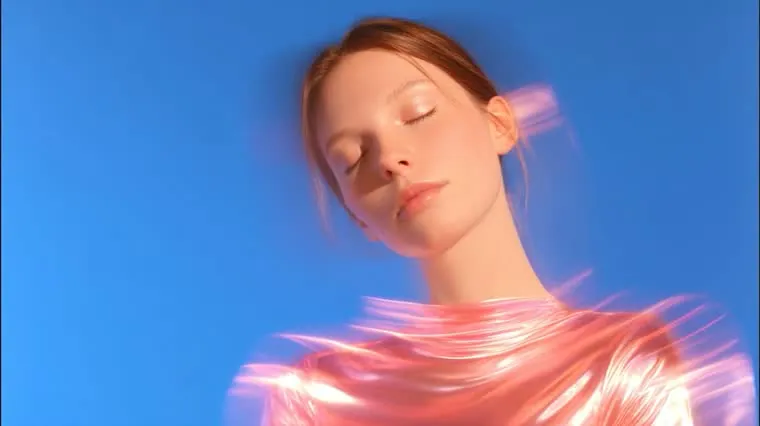
Woman in pink iridescent fabric against a blue backdrop
Portraits

Iridescent Studio Muse

Place this portrait on a solid cobalt-blue studio backdrop, wrap the subject in glossy pink iridescent fabric with soft motion-blur light trails, eyes gently closed, clean high-fashion lighting and natural skin.

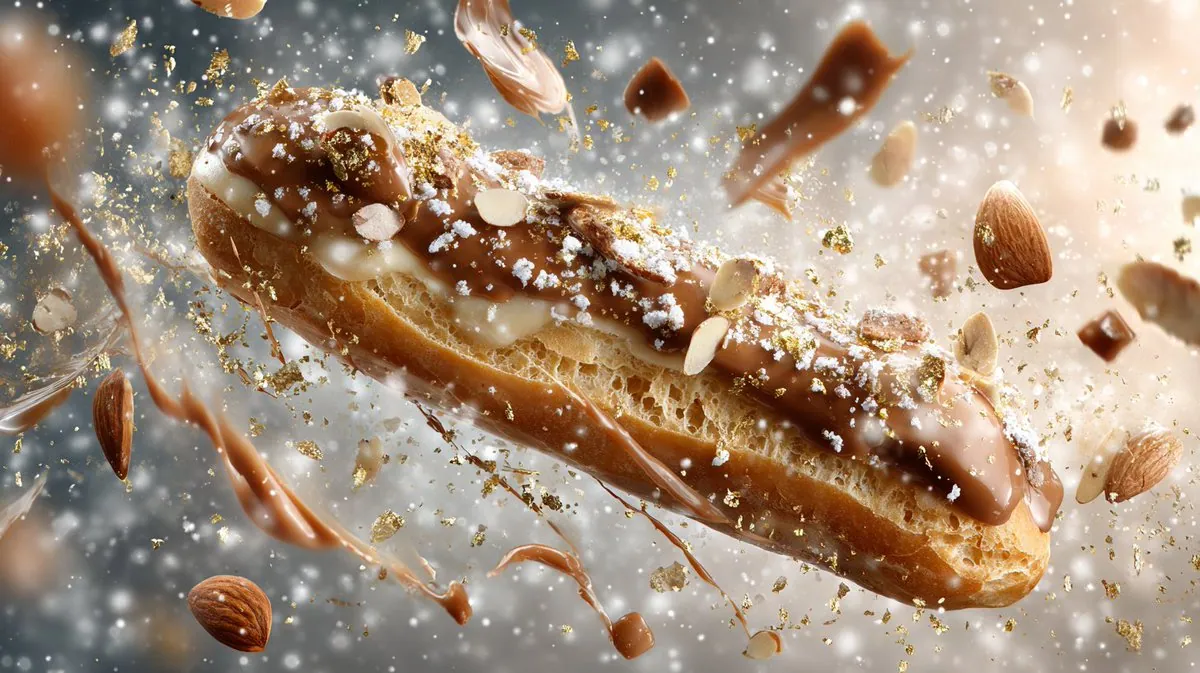
Chocolate pastry floating with flying nuts, a food ad edit
Products

Flying Pastry Ad

Turn this product photo into a commercial food ad: the pastry floats mid-air with glossy chocolate glaze, nuts and crumbs flying around it, warm studio backlight, frozen-motion sharpness and a soft blurred background.

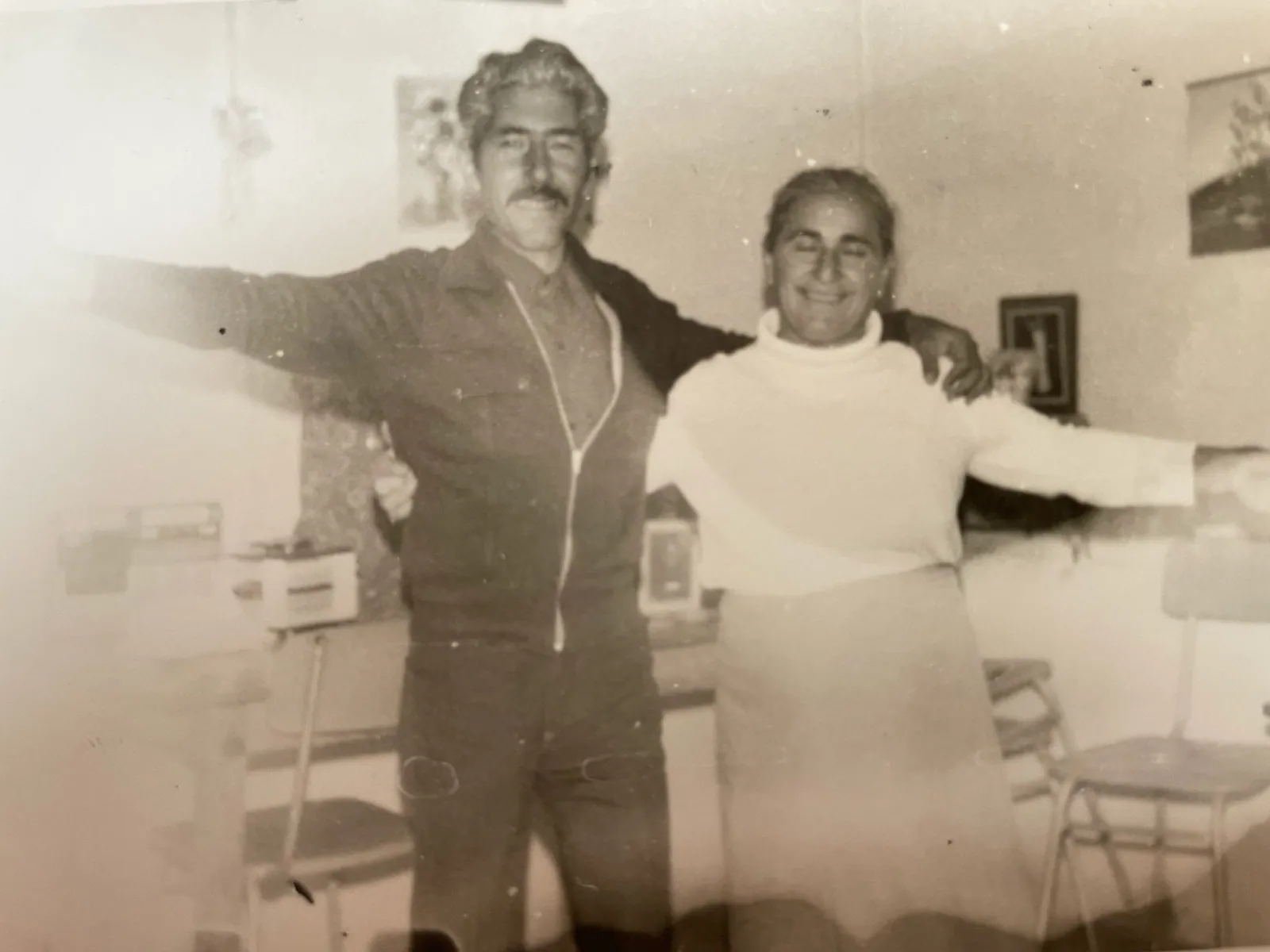
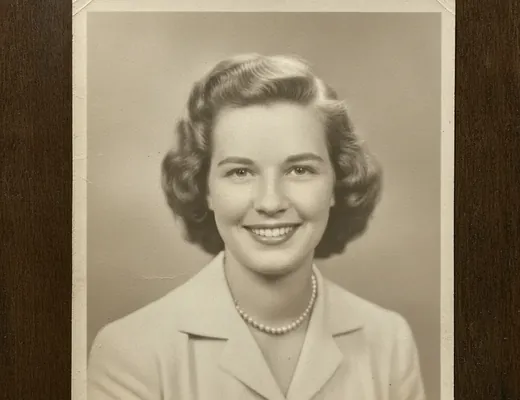
Vintage sepia portrait ready to restore with AI
Restore

Old Photo Revival

Restore this old photo: remove scratches, dust and fading, sharpen the faces naturally, rebalance the sepia tones or add gentle realistic color, and keep the original clothing, pose and background intact.

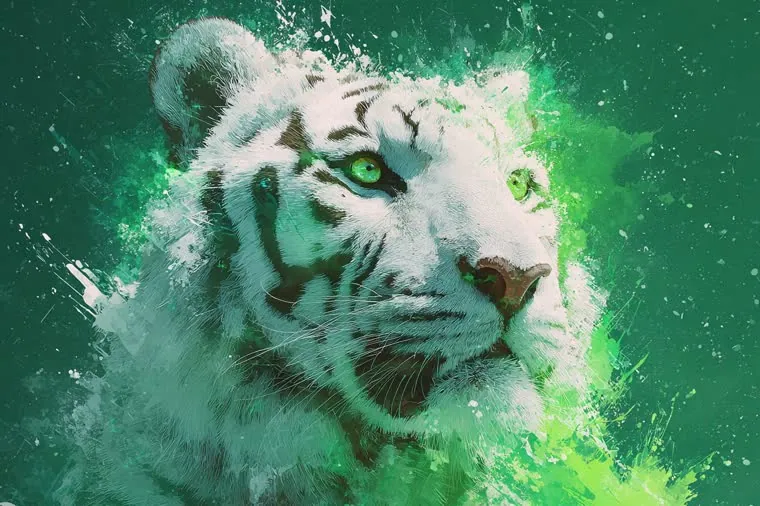
White tiger bursting into green paint splatter
Fantasy

Paint-Splash Tiger

Transform this animal photo into a bold paint-splash artwork: keep the face sharp and detailed, burst the edges into emerald-green and white paint splatter, high contrast, contemporary gallery poster style.

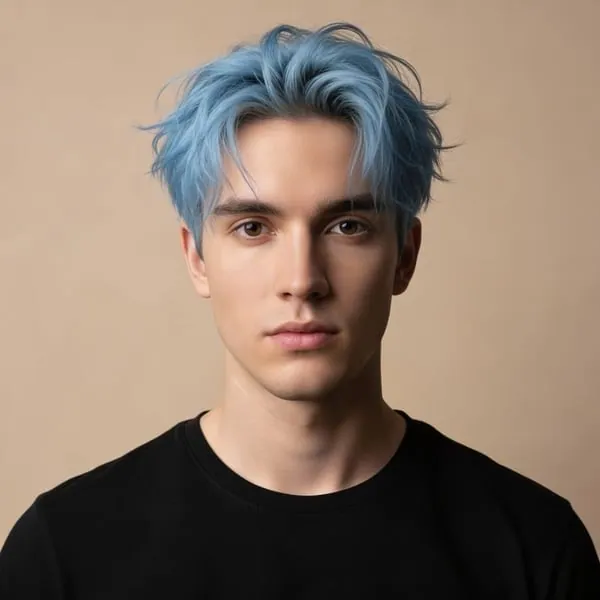
Young man with icy blue hair against a beige backdrop
Portraits

Hair Color Switch

Change the hair color in this portrait to icy pastel blue with soft texture and natural roots. Keep the face, skin, clothing and warm beige background exactly the same.

Glowing aroma diffuser on a bedside table at night
Products

Cozy Bedside Glow

Place this product on a wooden bedside table in a dim, cozy bedroom: warm lamp glow, soft bedding blurred behind, a small alarm clock, and gentle mist curling up into a little moon and stars. Calm evening mood.

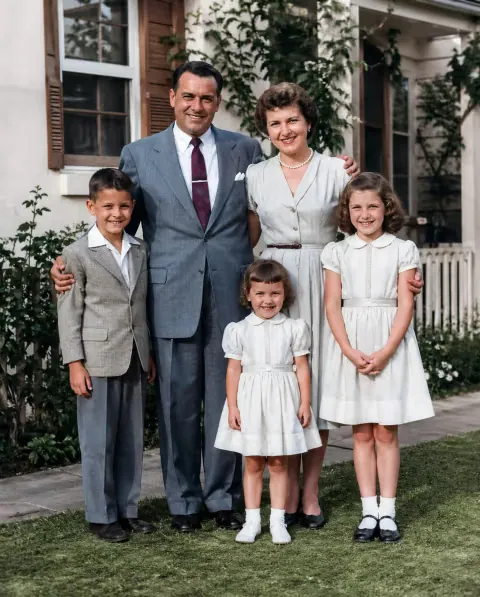
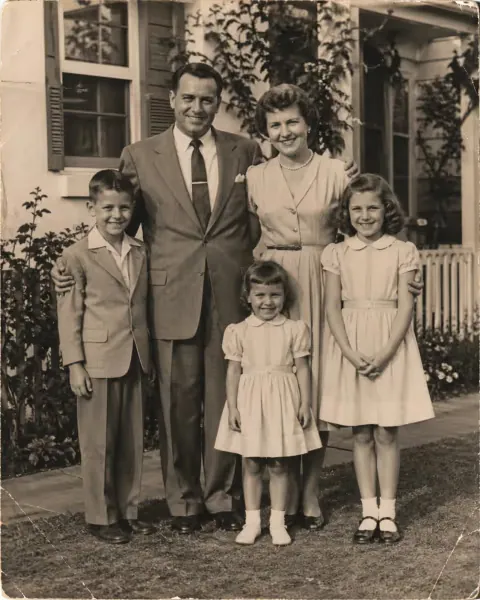
Black-and-white family photo colorized with AI
Restore

Colorize a Family Snapshot

Colorize this black-and-white family photo with natural, period-accurate tones: warm skin, soft fabric colors and green garden foliage. Remove dust and fold marks, and keep every face, pose and background detail unchanged.

Top AI Models Behind Our AI Photo Editor

EditPic is powered by leading third-party image models, all inside one AI photo editor. Pick the engine that suits your edit, from sharp text to consistent characters or early drafts, without switching apps.

GPT Image 2: Sharp Text, Precise Instructions

Powered by OpenAI, GPT Image 2 is the pick when an edit needs readable text or several instructions at once. Describe signs, labels or layout changes and our AI photo editor follows them closely.

  • Readable Text in Images

    Add or replace words on signs, posters and packaging with clean, legible lettering.

  • Follows Detailed Instructions

    Handles multi-step prompts, like recoloring one item and adding another in one go.

  • Natural-Looking Results

    Keeps lighting, shadows and perspective consistent with your original photo.

About GPT Image 2
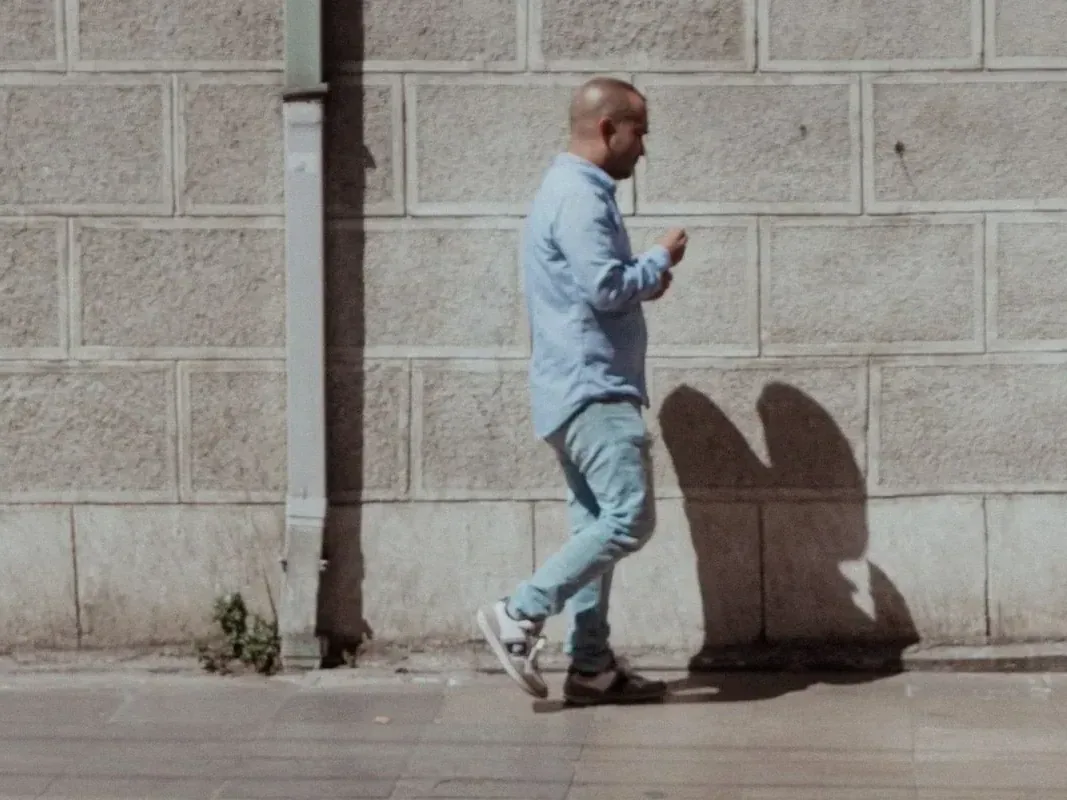
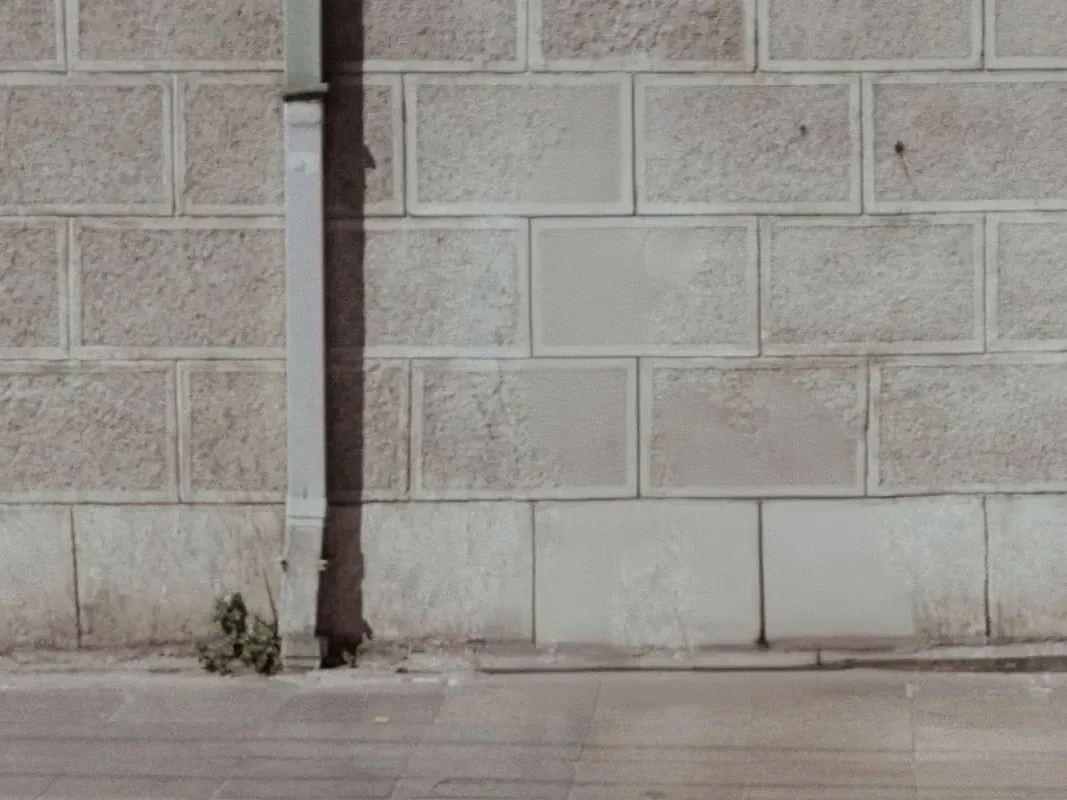
The same street with a man added walking past, his shadow matching the lightEmpty sidewalk in front of a pale stone wall
“Add a man walking past while checking his phone, with a matching shadow on the wall”

Nano Banana 2: Fast, High-Quality, Consistent Edits

Google's Nano Banana 2 brings quick, high-quality edits to the EditPic AI photo editor. It is a strong choice when the same person or product has to look consistent across a whole series of images.

  • Quick Turnaround

    Returns edits fast, so trying several prompt variations feels effortless.

  • Character Consistency

    Keeps faces, outfits and products recognizable from one edit to the next.

  • Reference Images

    Combine your photo with reference pictures to guide style, pose or composition.

About Nano Banana 2
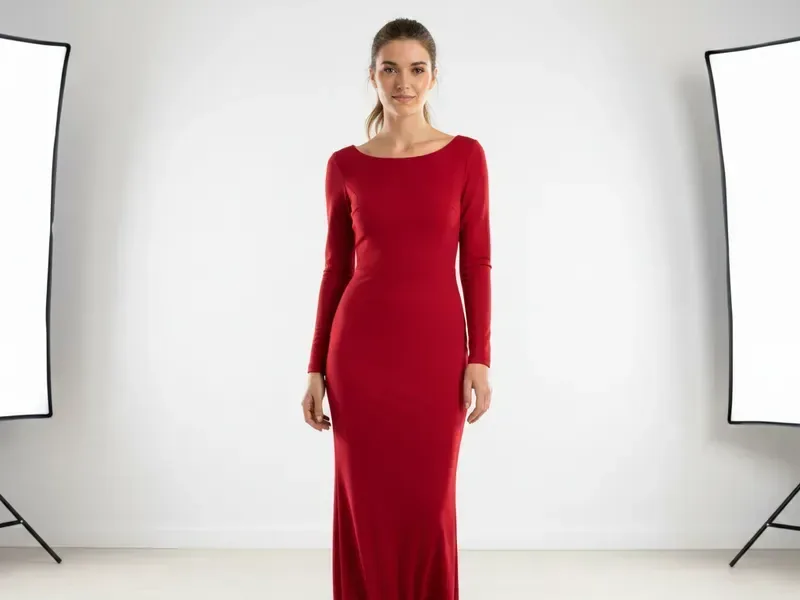
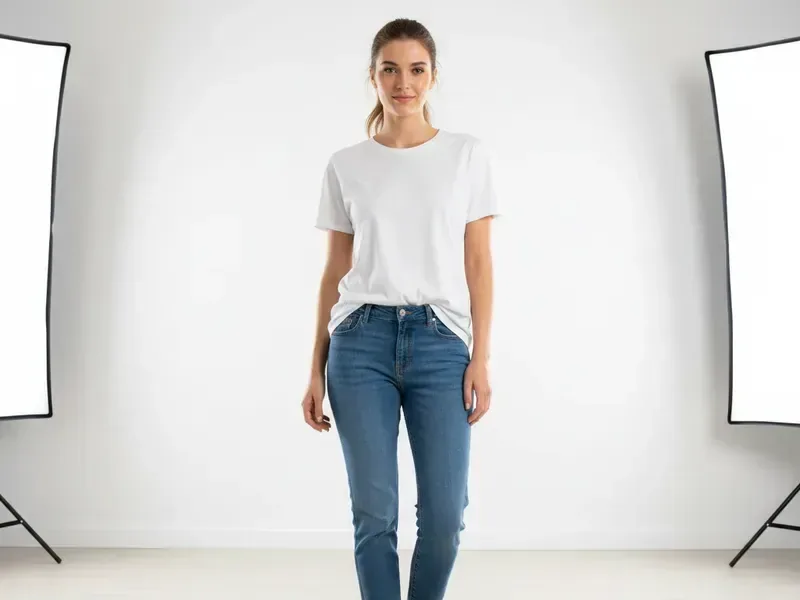
The same woman, same face and pose, now in a long red dressWoman in a white T-shirt and jeans in a photo studio
“Change her outfit to a long red dress, keep her face and pose”

Nano Banana Pro: Pro-Grade Detail for Demanding Edits

Nano Banana Pro from Google is built for demanding work. Use it in our AI photo editor when you need fine texture, accurate lighting and complex scenes. The model itself supports up to 4K; EditPic currently exports at 1K or 2K.

  • Detailed 2K Output

    Export detailed images at 1K or 2K for banners, listings and client work.

  • Fine Texture and Lighting

    Renders skin, fabric and materials with realistic depth and highlights.

  • Controlled Adjustments

    Change camera angle, focus or color grading with plain-language prompts.

About Nano Banana Pro
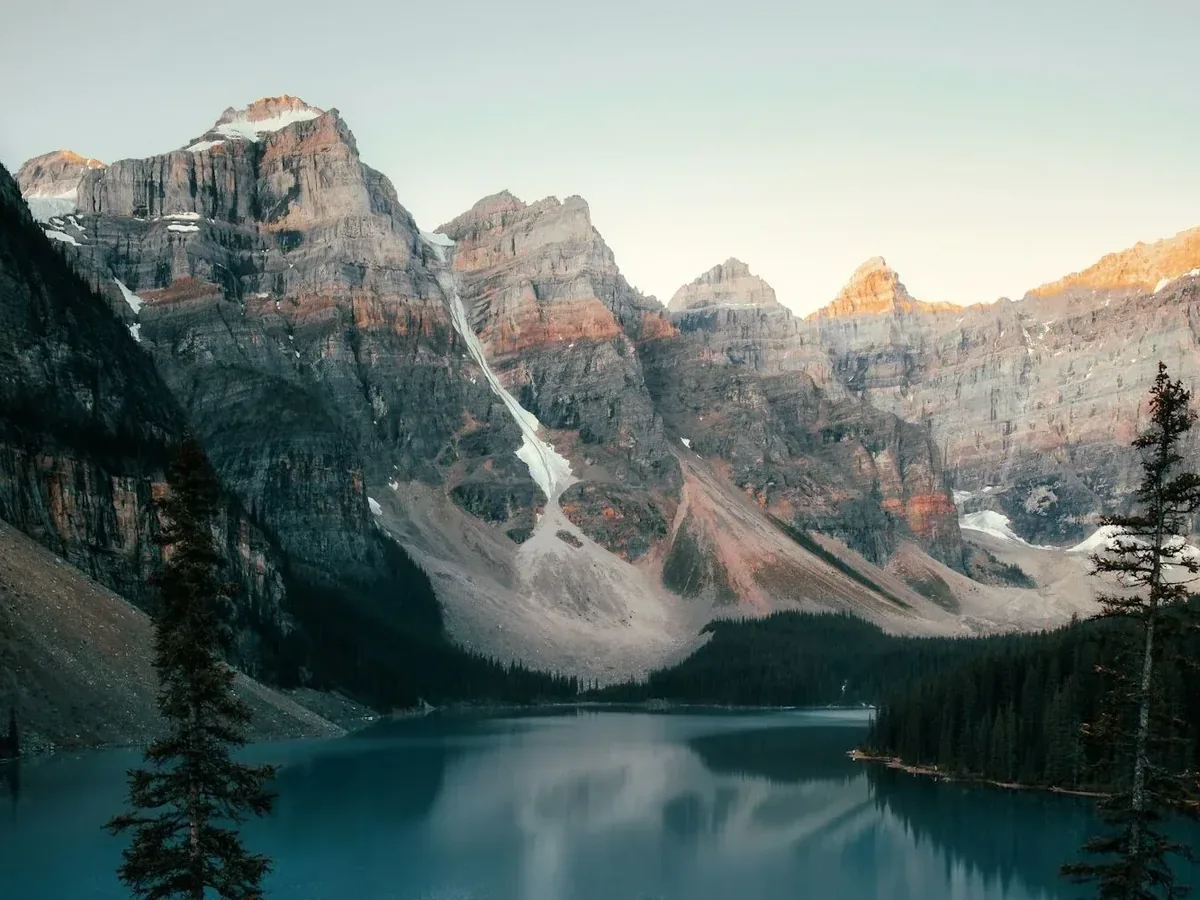
The same mountain lake, sharp and detailed after AI enhancementBlurry, low-detail photo of mountains above a lake
“Sharpen this blurry landscape into a crisp, detailed photo”

Nano Banana: Realistic Edits for Everyday Photos

Google's original Nano Banana is a dependable all-rounder in the EditPic AI photo editor. It excels at natural changes, like new backgrounds, outfit swaps and object removal, that still look real.

  • Realistic Results

    Edits blend into the photo with matching light, grain and color.

  • Background Changes

    Swap or clean up backgrounds while hair and edges stay natural.

  • Object Removal

    Erase people, signs or clutter and fill the space convincingly.

About Nano Banana
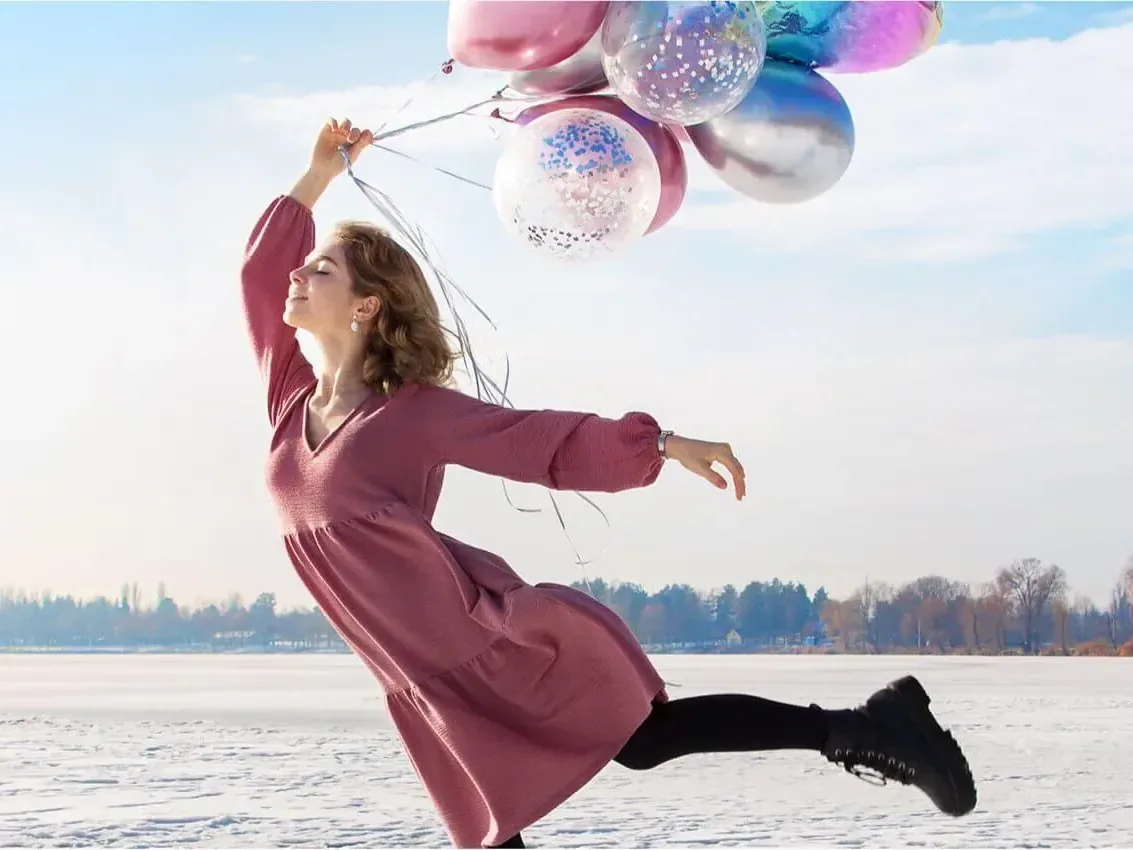
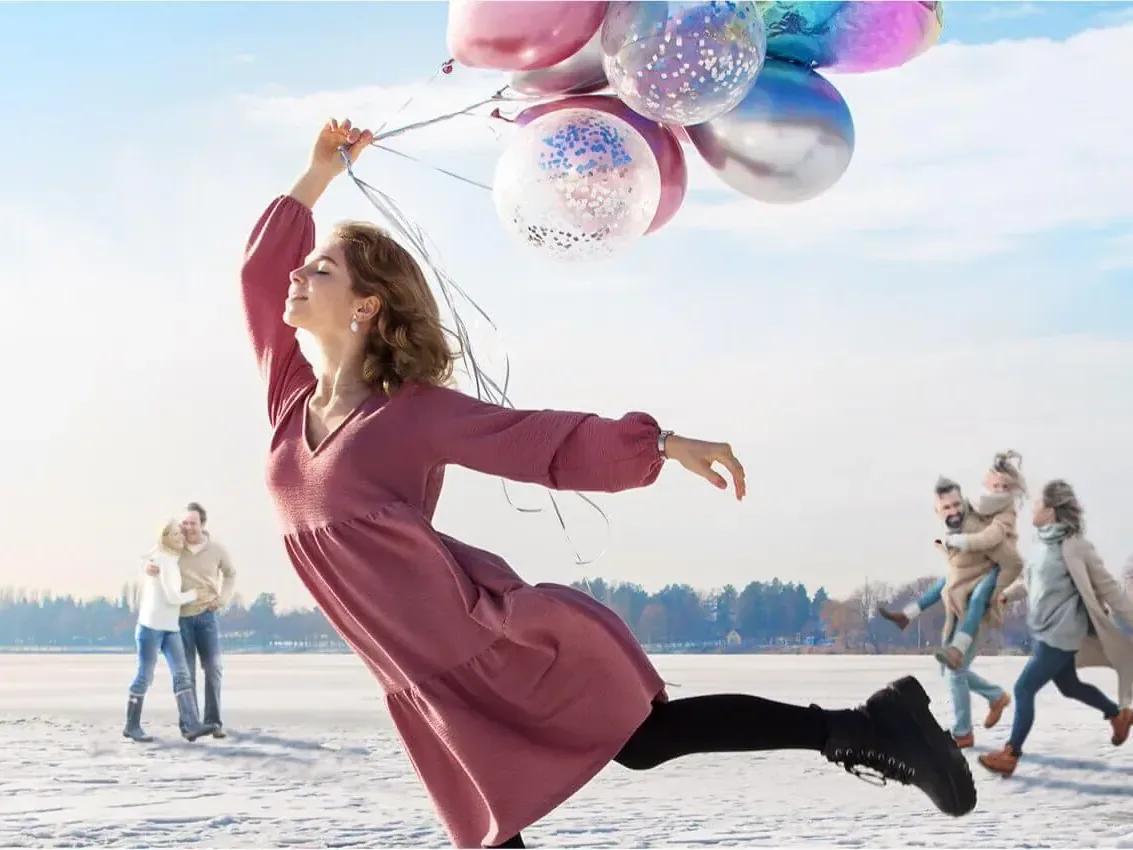
The same photo with the passersby removed and the snow filled inWoman leaping with balloons on a snowy field, people walking behind her
“Remove the people in the background and fill in the snow naturally”

Seedream: Drafts and Variations Before You Commit

Seedream, developed by ByteDance, is the model for exploring. In our AI photo editor, use it for drafts, side-by-side variations and product shots one at a time, so you can try lots of ideas or backdrops before you commit.

  • Draft-First Workflow

    Start with a loose prompt, treat the result as a sketch, then tighten what is off.

  • Side-by-Side Variations

    Run the same idea a few different ways and compare the versions next to each other.

  • Round-by-Round Refinement

    Try several versions of an idea back to back and keep the best one.

About Seedream
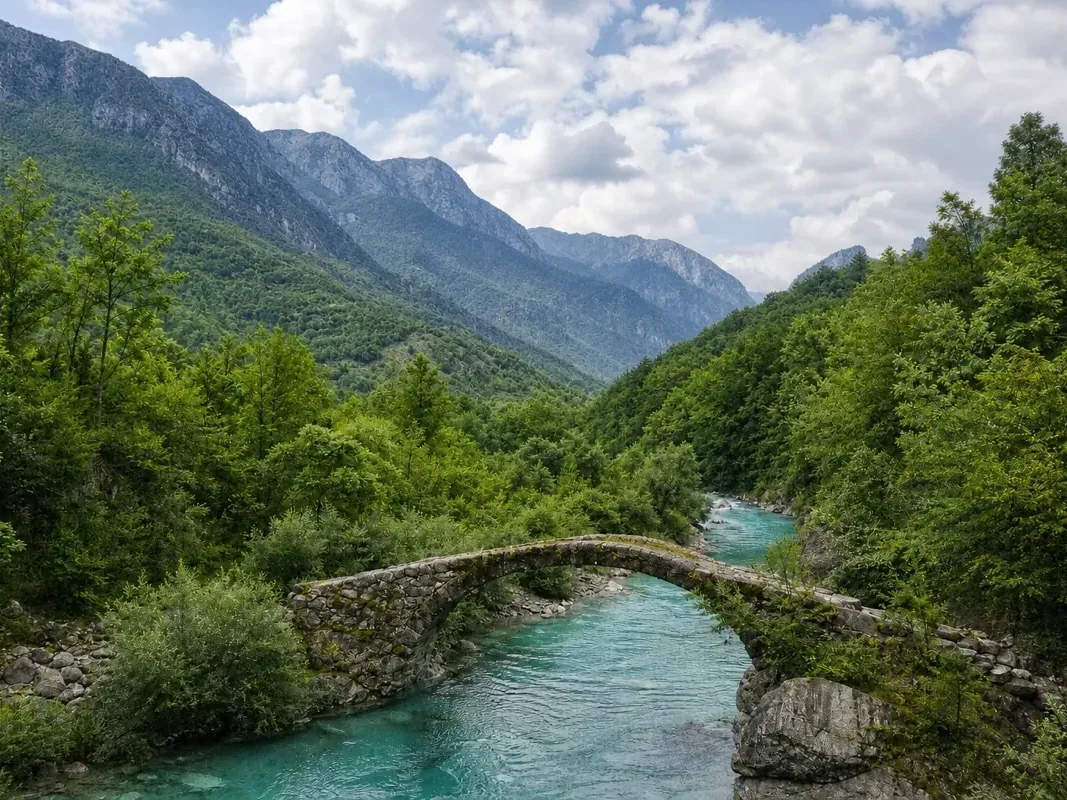
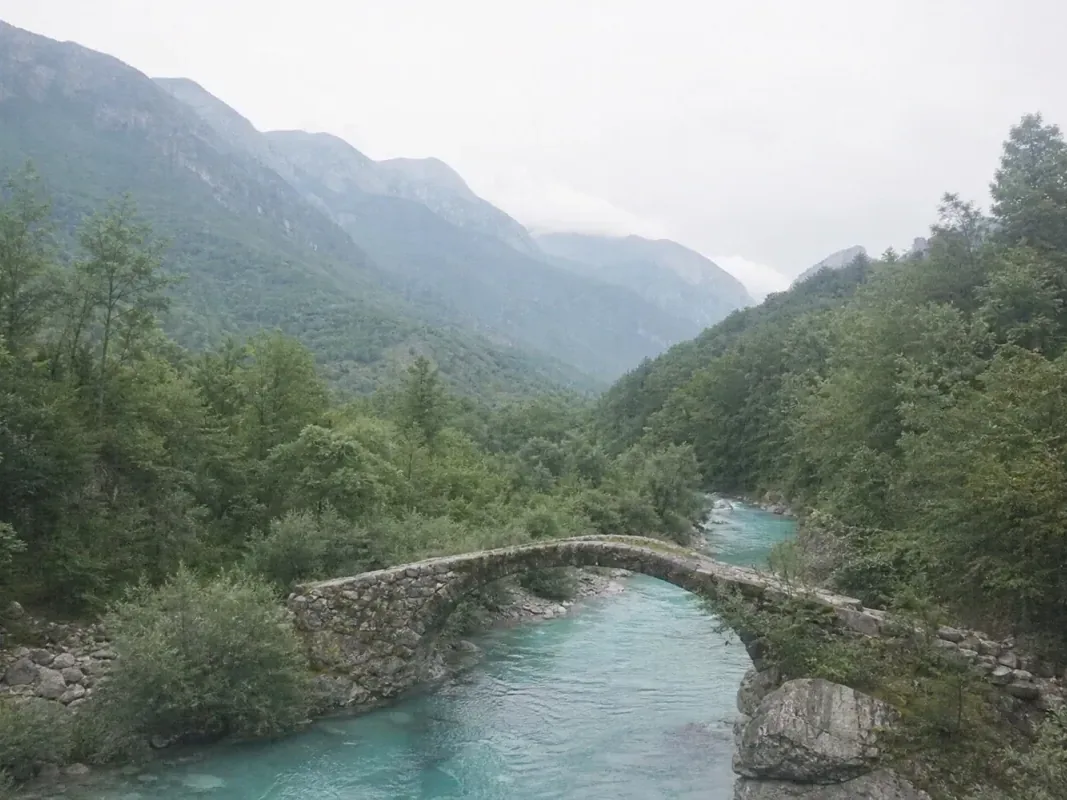
The same valley on a sunny day with blue sky, clouds and vivid greensOvercast mountain valley with a stone bridge over a river
“Make it a sunny day: blue sky, white clouds and richer greens”

Flux: Precise Control and a Consistent Style

Flux from Black Forest Labs gives fine-grained control in the EditPic AI photo editor. Choose it when an edit should touch only what you describe and keep a steady look across a whole set of images.

  • Context-Aware Editing

    Understands the scene, so changes fit the existing composition.

  • Local Precision

    Edits one object or area while the rest of the photo stays as it was.

  • Style Consistency

    Keeps colors, lighting and mood uniform across a series.

About Flux
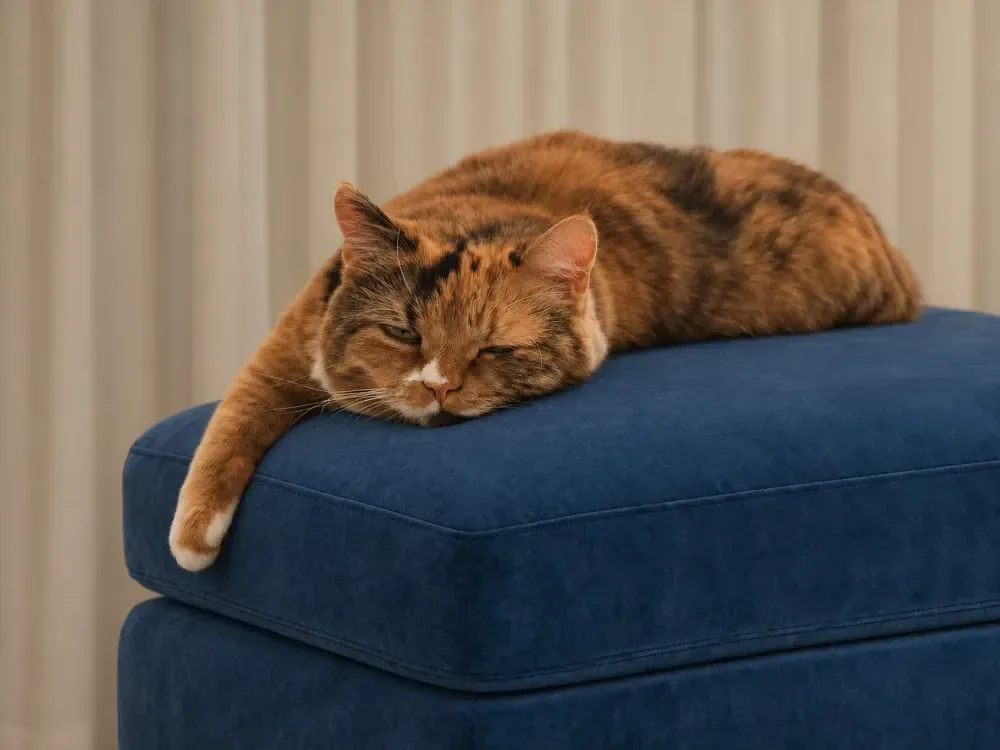
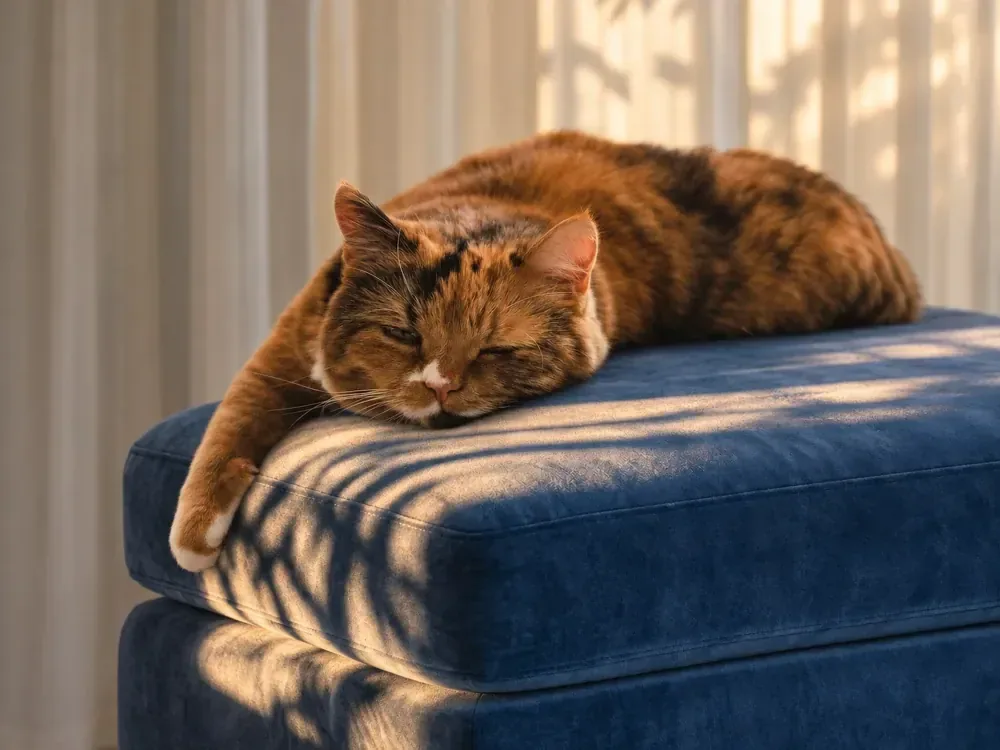
The same cat and cushion with the shadows removed and everything else unchangedCat asleep on a blue cushion, striped with harsh window shadows
“Remove the window shadows from the cat and the cushion, change nothing else”

Key Features of the EditPic AI Photo Editor

EditPic is an online AI photo editor built around one prompt box: upload a photo, describe the change, pick a model and download the result. No design software or editing skills needed.

  • Edit by Describing It

    Type the change you want in your photo, like “remove the people in the background”. No layers or masks needed.

  • Top Models in One Place

    GPT Image 2, Nano Banana, Seedream and Flux in one AI photo editor. Pick the engine per edit.

  • Nothing to Install

    The AI photo editor works in your browser on desktop and mobile: upload, edit and download in one place.

  • Precise Local Edits

    Change one object, color or area. Faces, light and the rest of the photo stay put.

  • High-Resolution Export

    Download sharp photos at 1K or 2K for posts, listings and print.

  • Private by Default

    Your photos are used only for your edits, never sold or used to train our models. Deleted on request.

Pricing

Pick Your AI Photo Editor Plan

Choose by how often you edit photos. Every plan unlocks every tool and AI model; bigger plans add more credits, and yearly billing gives the most credits per month.

Billed once a year · 2.2–3.1× the monthly credits each month · save 20%

Every plan includes

  • All AI photo editor tools
  • All 6 AI models
  • We don't add our own watermark
  • JPG, PNG or WebP up to 20 MB

Starter

Save 20%

For a few photo edits a month

$7.91/month$9.90/mo

$94.90 billed once a year

You save $23.90 a year vs monthly

13,100credits / year
3.1× monthly

About 1,091 credits a month, all added up front

$0.12 per edit · Nano Banana 2 · 1K

  • About 68 edits a month · Nano Banana 2 · 1K
  • About 30 edits a month · Nano Banana Pro · 2K
Recommended

Pro

Save 20%

For creators who edit photos every week

$15.83/month$19.90/mo

$189.90 billed once a year

You save $48.90 a year vs monthly

26,400credits / year
2.4× monthly

About 2,200 credits a month, all added up front

$0.12 per edit · Nano Banana 2 · 1K

  • About 137 edits a month · Nano Banana 2 · 1K
  • About 61 edits a month · Nano Banana Pro · 2K

Studio

Save 20%

For online shops and high-volume photo editing

$31.66/month$39.90/mo

$379.90 billed once a year

You save $98.90 a year vs monthly

53,100credits / year
2.2× monthly

About 4,425 credits a month, all added up front

$0.12 per edit · Nano Banana 2 · 1K

Lowest price per credit

  • About 276 edits a month · Nano Banana 2 · 1K
  • About 122 edits a month · Nano Banana Pro · 2K

FAQ

Frequently Asked Questions About the EditPic AI Photo Editor

Still have a question? Email us at support@editpic.app

  1. Is EditPic a free AI photo editor online?

    Signing up is free and needs no credit card, and every tool in the AI photo editor is open to you. AI edits use credits, which come with a paid plan, so you only pay once you are ready to edit and can pick the plan that matches how often you do.

  2. What does a credit get me?

    Credits pay for edits in the AI photo editor. Each edit uses a set number of credits that depends on the model you pick. If an edit fails, its credits go back to your balance. Subscriptions add credits every billing period; one-time packs add them once.

  3. How does editing a photo with a prompt work?

    Upload a photo, then type the change you want in plain words, such as "remove the people in the background" or "turn this into golden-hour light". Press Edit Image and the AI photo editor returns a new version you can download or refine with another prompt.

  4. Which AI models power the EditPic AI photo editor?

    You can choose between Nano Banana 2, Nano Banana Pro, Nano Banana, GPT Image 2, Seedream and Flux. Each one has its strengths, from fast everyday fixes to detailed, high-resolution edits, so you can pick the model that suits the photo.

  5. Can I remove backgrounds, erase objects and upscale images?

    Yes. Use the quick actions or simply describe the job: remove background, erase objects, upscale image, enhance photo, change background, restyle photo or restore old photos. All of them run in the same AI photo editor.

  6. Do I own the pictures I edit with EditPic?

    Your uploads stay yours, and we don't claim ownership of the edited photos you download. Before you publish a result, make sure you have the rights to the original photo; our Terms of Service explain how results may be used.

  7. Which image formats and file sizes are supported?

    The AI photo editor accepts JPG, PNG and WebP images up to 20 MB each. Phone photos, screenshots, product shots and scanned prints all work, and the edited photo downloads as a ready-to-use image file.

  8. Are my uploaded photos kept private?

    Photos you upload to the AI photo editor are sent over an encrypted connection and used only to process the edits you ask for. We don't sell your photos or publish them anywhere. You can read the details in our privacy policy.

  9. Do I need Photoshop skills to edit pics online?

    No. The AI photo editor has no layers, masks or brushes to learn. You edit photos with AI by describing the result you want, right in your browser.

  10. How long does an AI photo edit take?

    In the AI photo editor, it depends on the model you pick and the size of your photo. Everyday edits usually come back first, while high-detail models and large images take longer. If you want a different take, you can try another prompt on the same photo straight away.

  11. Do I need to install an app to edit photos with AI?

    No. The EditPic AI photo editor runs in any modern browser on desktop, tablet or phone, so there is nothing to download or install. There is no separate mobile app yet; on a phone, just open the site, upload a photo from your gallery and describe the edit.

  12. Does EditPic add a watermark to edited photos?

    We don't add our own watermark to the photos you download from the AI photo editor. Some model makers embed an invisible marker of their own: Google, for example, says images made or edited with its Nano Banana models carry SynthID, a digital watermark that identifies AI-made images without showing in the picture.

  13. Which AI model should I choose for my photo?

    Start with Nano Banana 2, the default in the AI photo editor, for everyday edits and for keeping the same person or product consistent. Pick GPT Image 2 for readable text and detailed instructions, Nano Banana Pro for fine texture and complex scenes, Nano Banana for natural background or outfit changes, Seedream for drafts and variations, and Flux when only the part you describe should change.

  14. What resolution and aspect ratios can I download?

    The AI photo editor exports at 1K or 2K (a few models offer only one of the two), in 1:1, 3:4, 4:3, 9:16 or 16:9, which covers square posts, portrait stories and widescreen banners. Results download as regular image files. Transparent PNG export is not available yet, so for a cutout ask for a plain white or solid-color background.

  15. Can I edit several photos at once?

    Not in one go. The AI photo editor has no batch upload, so each run edits one photo. For a set of product shots or a photo series, write one prompt with the same background, light and aspect ratio, then reuse it for every photo so the results match.

  16. How do I write a good prompt for AI photo editing?

    Name what should change, describe the result and say what must stay the same, for example: “Replace the gray sky with a warm sunset, keep the people and the building unchanged.” One change per prompt works best. For a starting point, send one of the ready prompts above straight to the AI photo editor.

  17. Can the AI photo editor restore and colorize old photos?

    Yes. Upload a scan or a phone photo of the print and ask the AI photo editor to repair scratches, tears and fading, then add natural color to black-and-white shots. Faces matter most, so add “keep the faces natural and recognizable” and compare the result with the original before you share it.

  18. Can I keep refining a result with another prompt?

    Yes. If a result is close but not quite right, write a short follow-up such as “make the light a little warmer” and run it again, or go back to your original photo and try different wording. Each new run in the AI photo editor counts as a new edit and uses credits.

  19. Can I use EditPic for product photos?

    Yes. You can use the AI photo editor to put a product on a clean white background, try new scenes, remove clutter or fix the lighting, one photo per run. For a store listing, ask for a white background with a soft shadow, and keep the same prompt and aspect ratio for every item.

  20. Can EditPic edit videos too?

    Not yet. The AI photo editor works on still images today, and video is coming soon; the Videos tab in the gallery above shows what is planned. For now, upload a JPG, PNG or WebP photo up to 20 MB and edit it with any of the six models.

Try the Free AI Photo Editor Online Today

Upload a photo, describe the change and let the EditPic AI photo editor handle the rest. Remove backgrounds, erase objects, upscale and restyle photos right in your browser.

Open AI Photo Editor
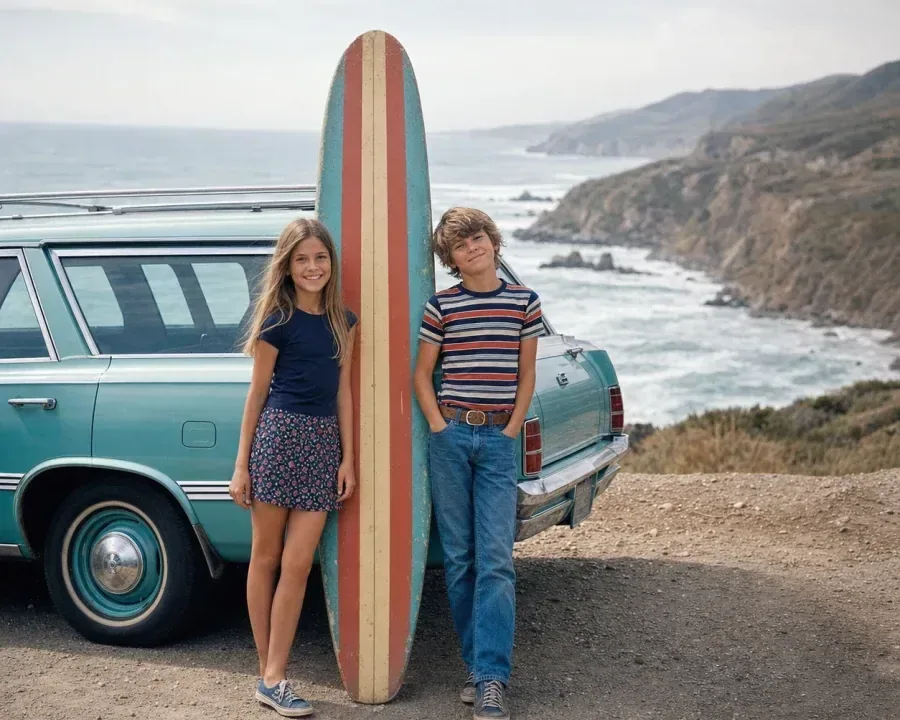
The same snapshot after AI photo editing: sharp faces, clear surfboard and coastlineBlurry vintage snapshot of two kids with a surfboard beside an old station wagon
“Sharpen this blurry old snapshot and bring back the faces”